AI and AI StudioExtra
A Gemini-style writing bar with skills, letterheads, palettes and your own model.
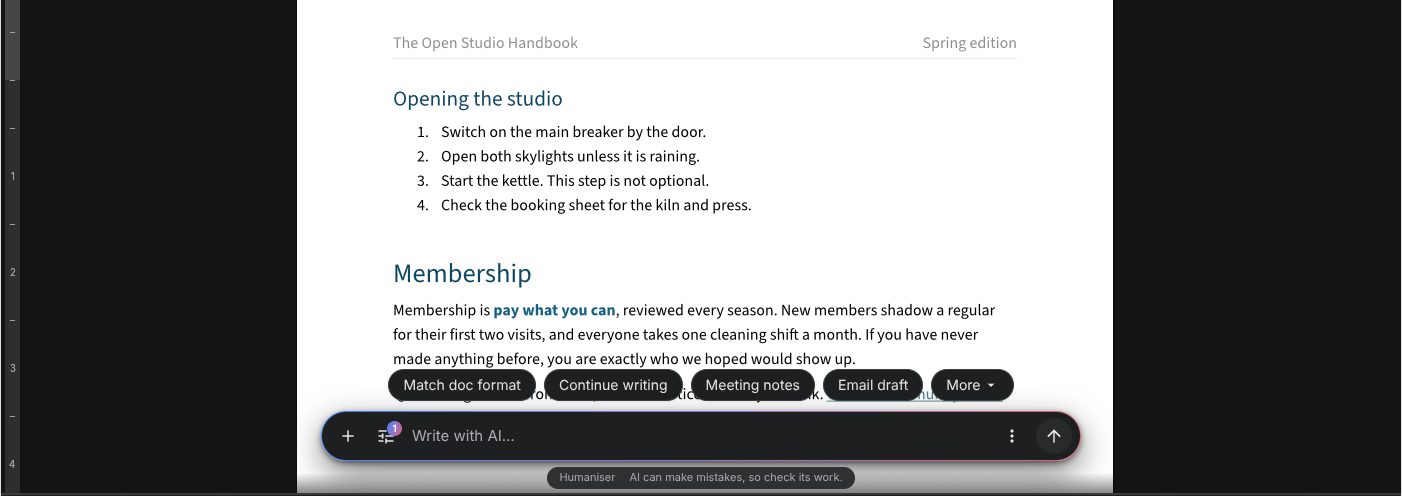
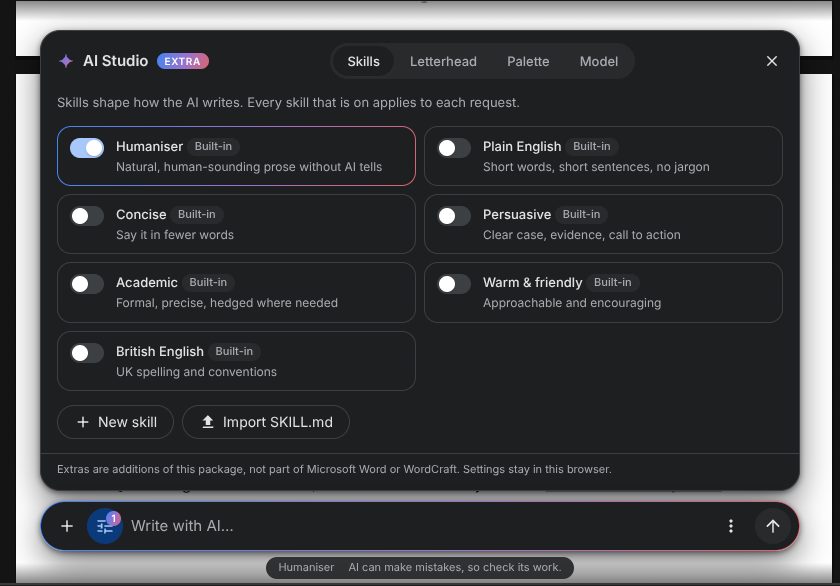
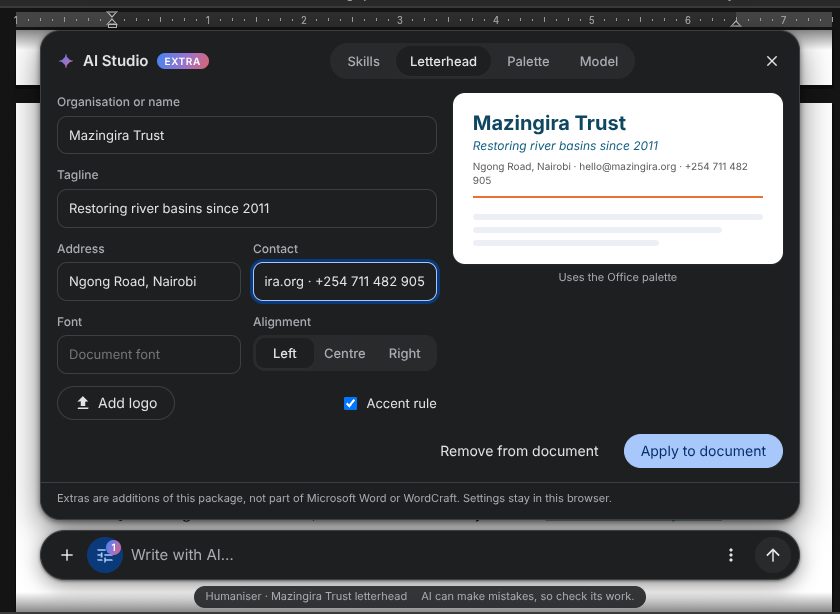
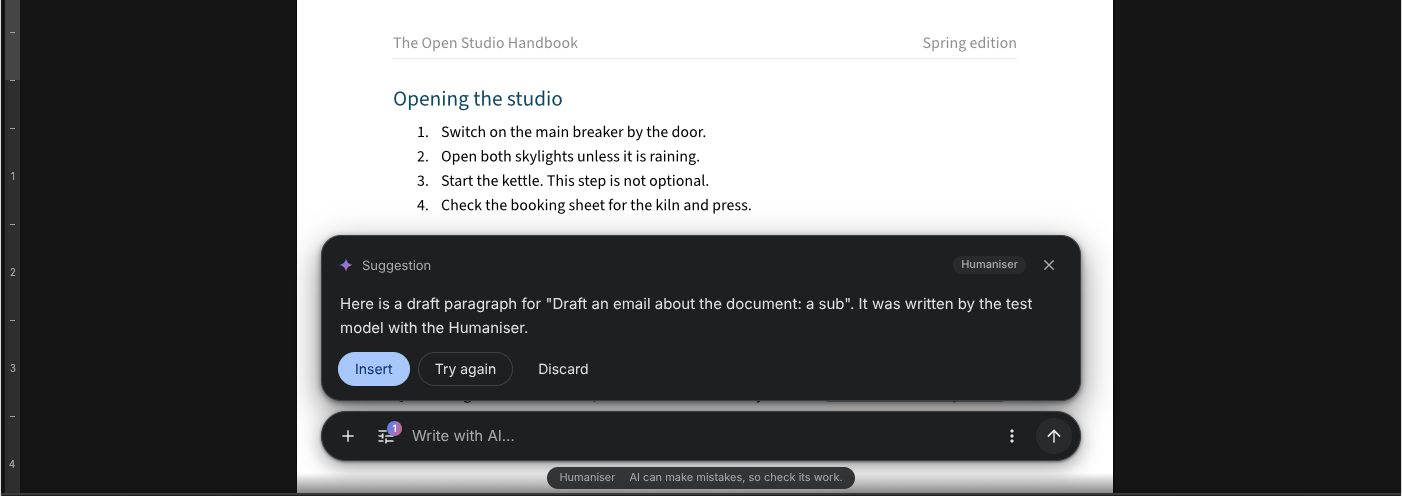
The sparkle opens a writing bar. AI Studio holds the skills (the Humaniser is on by default), a letterhead, palettes and the model.
ai puts a sparkle at the bottom centre of the editor, like Gemini in Google Docs. Hovering shows "Help me write"; clicking opens the AI bar:
- Quick actions: chips above the prompt box. With text selected: Rewrite, Shorten, Elaborate, More formal, and under More: Fix grammar, Summarize, More casual, Turn into an email, Make an outline, Match doc format. Without a selection: Match doc format, Continue writing, Meeting notes, Email draft, and under More: Summarize, Outline, Brainstorm.
- The prompt box: + for templates (proposal, formal letter, blog post, cover letter and more), AI Studio, the "Write with …" field, a ⋮ menu and the send button.
- Answers: they stream into a preview. People then insert it, replace the selection, insert it below, try again or discard it.
AI Studio
The sliders button in the prompt box opens AI Studio. Its settings stay in the person's browser.
- Skills: writing instructions added to every request. The Humaniser is on by default. It asks for natural, human-sounding prose with varied rhythm, plain words, no stock AI phrases and no em dashes. Built-in skills also include Plain English, Concise, Persuasive, Academic, Warm & friendly and British English. People can write their own skill or import a
SKILL.md(front matternameanddescription, then the instructions). Your app can add skills withai.skillsand choose which are on withai.defaultSkills. - Letterhead: organisation name, tagline, address, contact line, logo, font, alignment and an accent rule, with a live preview. Apply to document writes it into the document header. The AI also gets these details as context for letters and emails. Your app supplies the organisation's letterhead with
ai.letterhead; it is read live, so one that loads after the editor shows at once and a changed one replaces it. A person's own edits are kept separately in their browser (only once they have a name), with Reset to organisation letterhead to go back.ai.letterheadLocked: truekeeps the official letterhead untouched (read-only fields, only Apply and Remove), andai.onLetterheadApplied(letterhead)tells your app when it was applied, to log it or save the document. - Palette: eight brand palettes, a custom one, and palettes made from a logo or photo. Apply to document writes it as the document theme; Apply to headings recolours only the title and headings. The letterhead uses the same colours. Your app can add palettes with
ai.palettes. See Brand theme and logo placement. - Model: the provider, API key, model and endpoint (see below).
Where answers come from
The first of these that is set up is used:
- The person's own key. They add an OpenRouter, OpenAI, Anthropic, Google Gemini or any OpenAI-compatible key under Model. It stays in their browser and is sent only to that provider. This is on by default; turn it off with
allowUserKey: false.ai={true}offers only this, and the sparkle asks for a key the first time. provider, a key your app supplies:{ provider: 'openrouter', apiKey, model? }. The key is visible to the page, so use a per-user or short-lived key here.complete, your own function. It is usually a call to your API route, which keeps your key on your server and works with any model.
// Your endpoint (people can still bring their own key):
<WordcraftEditor
  ai={{
    async *complete({ signal, ...request }) {
      const res = await fetch('/api/ai', { method: 'POST', body: JSON.stringify(request), signal });
      const reader = res.body!.getReader();
      for (;;) {
        const { done, value } = await reader.read();
        if (done) return;
        yield new TextDecoder().decode(value);
      }
    },
    letterhead: { name: 'Open Studio Collective', contact: 'hello@openstudio.org' },
    skills: [{ id: 'house-style', name: 'House style', instructions: 'Use sentence case headings.' }],
    defaultSkills: ['humaniser', 'house-style'],
  }}
/>

// Only people's own OpenRouter / OpenAI / Anthropic / Gemini keys:
<WordcraftEditor ai />
request has prompt, action, selection, document, and instructions (the skills that are on, and the letterhead). On your server, pass the request to aiSystemPrompt(request) from @gamine/wordcraft-react/core to build the system prompt with those instructions, and to describeAiRequest(request) to turn a quick action into a task for your model. completeWith(providerConfig, request) streams from any supported provider, and works in an API route too. examples/nextjs/app/api/ai/route.ts streams Claude using ANTHROPIC_API_KEY.
Requests also carry history (document chat), goals (writing checks), language (translation) and data (structured output from a table), and action can be ask, structure, check or translate. aiUserMessage(request) and aiSystemPrompt(request) build the right message for each, so a route that uses them handles every Extra.
Other options: launcher: 'none' hides the sparkle (control the bar with the aiOpen and onAiOpenChange props), ribbonButton: true adds a sparkle beside Comments in the ribbon, studio: false hides skills, letterhead and palette, and onStudioChange reports AI Studio's settings so you can keep them on your server.